How do I add closed captions or subtitles to a video?
Short answer
Open the video, go to Captions and select Add Caption to upload a VTT or SRT file for a language. You can also create a transcript on the Transcript page, and Mindstamp adds an English caption track for you. Viewers turn captions on in the player, and you can set a default track that is on when the video starts.
How to do it
Copy link to How to do it- Open the video in the editor.
- In the video menu, select Captions.
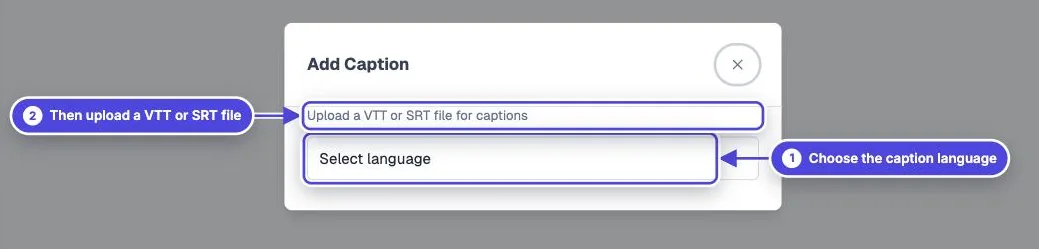
- Select Add Caption, choose the language, and upload a .vtt or .srt file.
- Repeat for each language you have.
- To turn a track on when the video starts, select Make default on that track.
- Select Preview, turn on captions in the player, and check that the text matches the speech.
Make captions from a transcript
Copy link to Make captions from a transcriptIf you do not have a caption file, go to Transcript and select Create Transcript. When the transcript is ready, Mindstamp adds an English caption track to the video. If you edit and save the transcript, the caption track updates. See video transcripts.
Captions in other languages
Copy link to Captions in other languagesUpload your own caption file for each language, or use Translate to create translated audio, captions and transcript. See how to translate a video and AI dubbing costs.
Caption file tips
Copy link to Caption file tips- Use VTT or SRT. Other formats are not accepted.
- Save the file as UTF-8 so accented letters and other scripts show correctly.
- Make the caption times match the final cut of the video.
- If you replace the video file, the caption tracks stay. Upload new files if the words or timing changed.
Captions and accessibility
Copy link to Captions and accessibilityCaptions help viewers who are deaf or hard of hearing and viewers who watch without sound. For other accessibility features, see accessibility features.