What is an audio clip in Mindstamp?
Short answer
An Audio Clip plays a sound or short narration inside your video. At the clip’s time, the main video pauses and the audio plays; when it ends, the video continues. Upload audio or record it in the browser, and it is saved in your asset library for reuse.
How to do it
Copy link to How to do it- Open the video in the editor and move the playhead to where the audio should play.
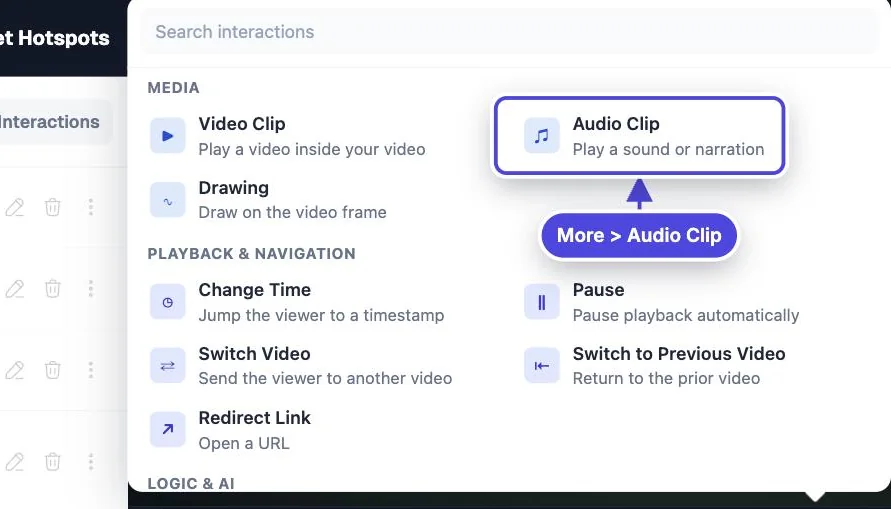
- In the interaction bar, select More, then Audio Clip.
- Select Select Audio and choose audio from your assets.
- To add new audio, select Upload Audio (MP3, WAV, OGG or FLAC) or Record Audio to record with your microphone for up to 2 minutes.
- Select Preview and listen on speakers and on headphones.
Play audio when a viewer clicks
Copy link to Play audio when a viewer clicksSet the click action of a button, hotspot or image to Play Audio Clip to play audio only when a viewer asks for it, for example to hear a pronunciation.
What viewers see
Copy link to What viewers seeWhile the audio plays, the video is paused and a small speaker animation shows at the top of the player. To let viewers close the audio early, go to Settings > Playback and turn on Allow skipping of video & audio clips.
When to use audio
Copy link to When to use audioPut the same information in text too, for example in a text overlay or the transcript, so viewers who cannot hear it can still follow.
- A short spoken explanation or correction, without re-recording the video.
- A pronunciation, a music sample or a sound effect.
- A voice prompt before a question.
Audio clips and background audio
Copy link to Audio clips and background audioAn Audio Clip pauses the video. To play music or a new soundtrack under the video while it plays, use a custom audio soundtrack instead of an Audio Clip.