How can I use HTML in a Mindstamp video?
Short answer
Open a text interaction, go to the Content tab, and select Edit as HTML. You can use HTML for line breaks, alignment, size, color, lists, links, images and icons, and an `iframe` to embed a form, map or scheduler. Mindstamp removes scripts and other tags that are not on its allowed list.
How to do it
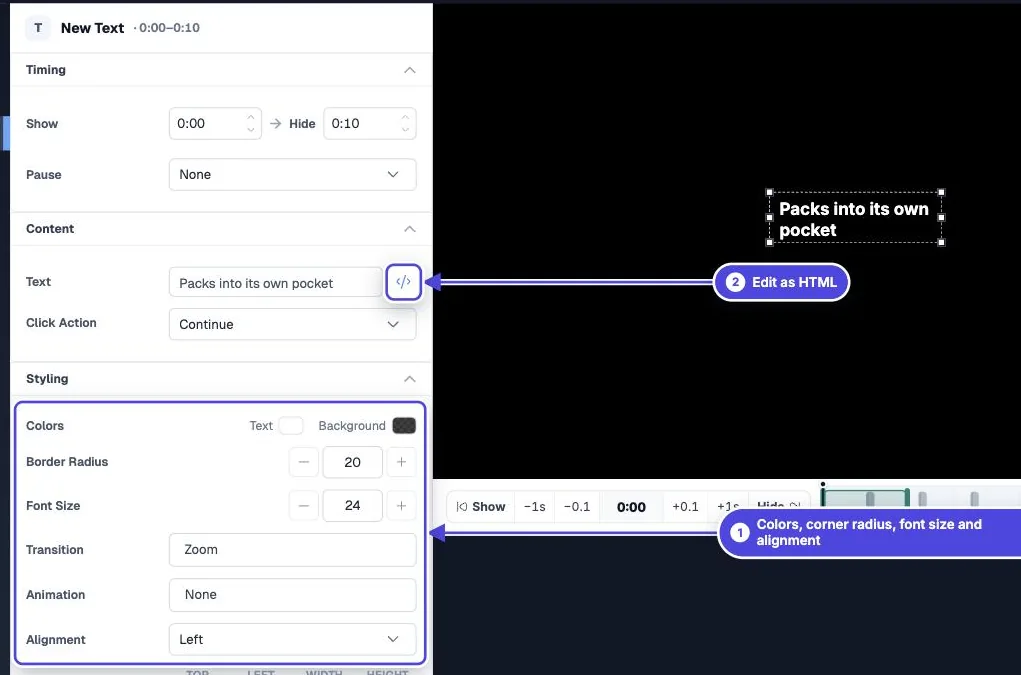
Copy link to How to do it- Add a Text interaction, or select one on the timeline.
- On the Content tab, select Edit as HTML.
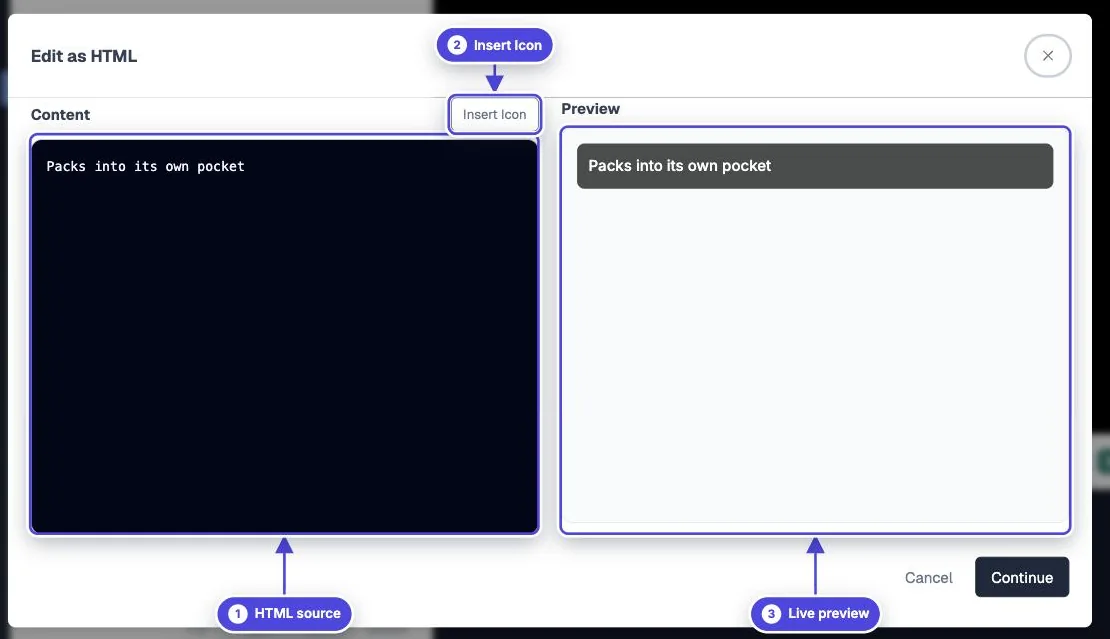
- Type or paste your HTML. Use Insert Icon to add an icon.
- Check the preview next to the editor, then save.
- Resize the interaction on the video so the content fits.
- Test: play the video in Preview on a laptop and a phone. Expected result: the formatting shows, and an embedded form or page loads and responds inside the interaction.

Where HTML works
Copy link to Where HTML worksThe full HTML editor is on text interactions. Button labels, question prompts, the Lead Capture prompt and Show message messages also show simple HTML that you type into their text fields.
Allowed tags and attributes
Copy link to Allowed tags and attributesIn text, button, comment and message content, Mindstamp keeps these tags: `div`, `p`, `span`, `br`, `h1`, `h2`, `strong`, `b`, `em`, `i`, `ul`, `li`, `a`, `img`, `iframe` and `style`. It keeps these attributes: `src`, `href`, `width`, `height`, `frameborder`, `allow`, `allowfullscreen`, `style` and `class`.
Everything else is removed when the video plays, including `script`, forms, `ol`, `h3`, `target` and event attributes such as `onclick`. Inline styles that use `position: fixed`, `z-index`, `100vw` or `100vh` are also removed, so content cannot cover the whole page.
Format text
Copy link to Format text<h2>Welcome</h2>
<p style="text-align: left">This paragraph aligns to the left.</p>
<ul>
<li><strong>Step 1:</strong> Watch the demo</li>
<li><strong>Step 2:</strong> Answer the question</li>
</ul>Embed a form, map or scheduler
Copy link to Embed a form, map or schedulerPaste the embed code the other tool gives you, as long as it is an `iframe`. The other site must allow its page to load in a frame. Some sites block this, and then the frame stays blank.
Embed codes that need a `script` tag do not work, because scripts are removed. Ask the tool for its iframe version, or open the page with the Open Link Modal click action instead.
<iframe src="https://example.com/booking" width="100%" height="100%" frameborder="0" allow="fullscreen"></iframe>Keep custom HTML maintainable
Copy link to Keep custom HTML maintainable- Use the Design and Styling controls first. HTML styles do not change when you update your Design colors later.
- Use a few repeatable patterns, not a new style in every interaction.
- Test on a phone. Fixed pixel sizes can overflow a small player.
- Keep links and important text readable without the styling.