How do I change my video thumbnail?
Short answer
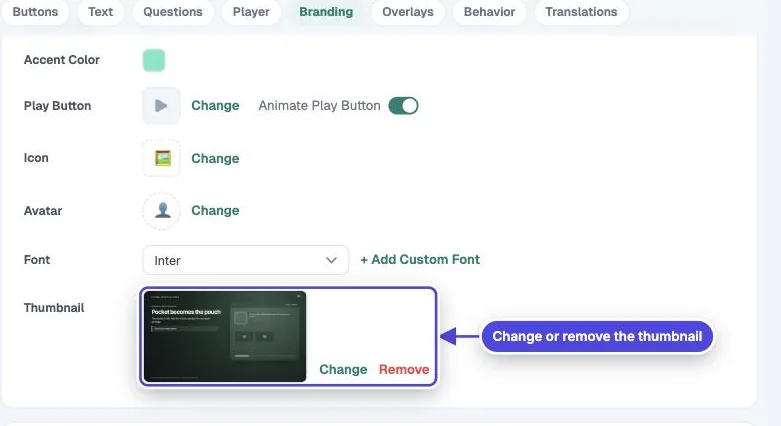
Open the video, select Design, and go to the Branding section. Under Thumbnail, select Add Thumbnail or Change, then pick a suggested frame or an image from your library. The thumbnail shows before playback only when Use Looping Preview is off.
How to do it
Copy link to How to do it- Open the video and select Design in the left menu.
- Scroll to Branding and find Thumbnail.
- Select Add Thumbnail, or Change if the video already has one.
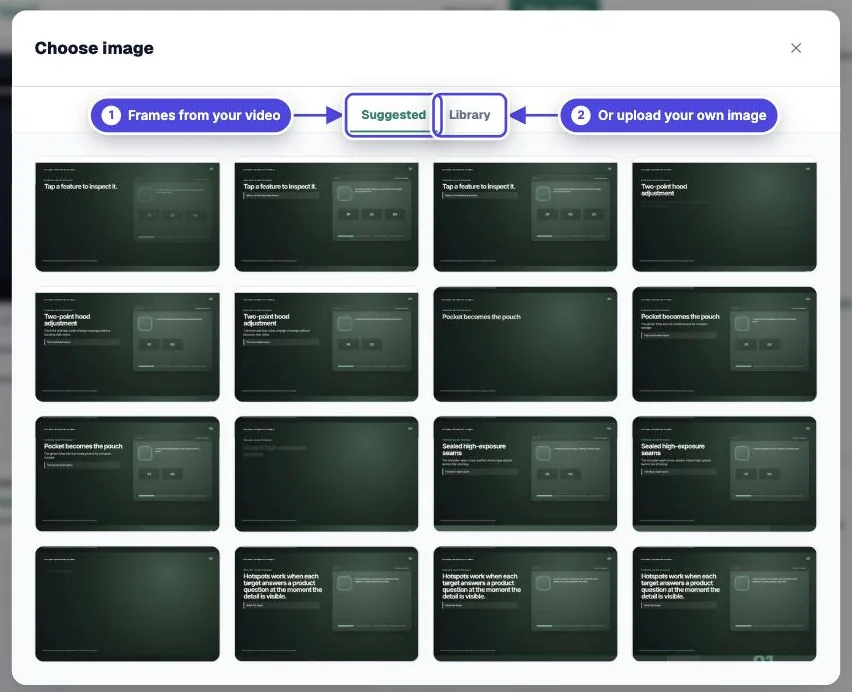
- In Choose image, pick a frame on the Suggested tab, or open Library to upload an image or pick one you used before.
- In the Player section, check that Use Looping Preview is off. When it is on, viewers see a short moving loop instead of the thumbnail.
- Test: open the share link in a private browser window. Expected result: your thumbnail shows before you press play.
Where the thumbnail appears
Copy link to Where the thumbnail appears- Before playback, in the player, on the share link and in embeds (when Use Looping Preview is off).
- In your video library in Mindstamp.
- As the preview image when the link is shared in chat, email and social apps. Sites cache this image, so an old image can stay for a while after you change it.
Choose a good image
Copy link to Choose a good image- Match the shape of the video, such as 16:9 for most videos or 9:16 for vertical video.
- Use an image at least 1600 pixels wide so it stays sharp on large screens.
- Use one clear subject with strong contrast. Small text becomes hard to read in a message preview.
- Leave space in the corners. The play button and your logo can sit on top of the image.
Thumbnails and shared designs
Copy link to Thumbnails and shared designsEach video keeps its own thumbnail. Apply to videos… and design resets do not change it. Suggested frames are available for videos uploaded to Mindstamp.
If the old image still shows
Copy link to If the old image still shows- Check that Use Looping Preview is off.
- Reload the page in a private window to skip your browser cache.
- For social and chat previews, the other site may keep the old image until its own cache expires.