How do I create and use groups in Mindstamp?
Short answer
A group is a shared space for selected videos. Open Groups in the side menu, select New group, add videos, and then add people as a Viewer, Analyst, or Admin. Groups are on Core and higher plans.
How to do it
Copy link to How to do it- In the side menu, under Organize, select Groups.
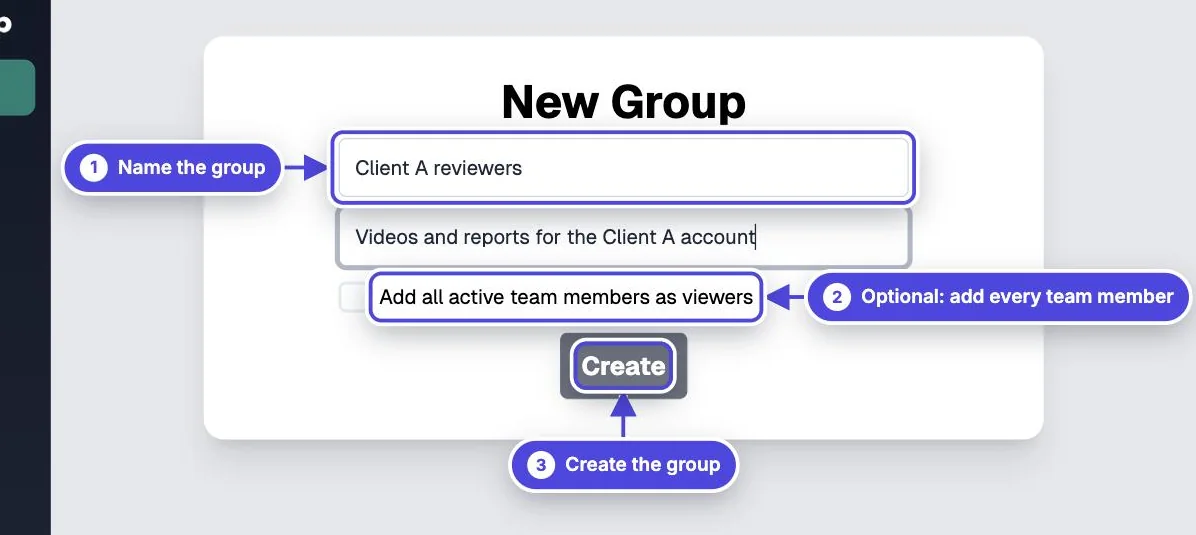
- Select New group, then enter a name and an optional description.
- Optional: select Add all active team members as viewers.
- Select Create.
- On the Videos tab, select Add Videos and choose the videos for this group.
- On the People tab, select Add team members for people already in your organization, or Invite People to invite someone by email.
- Choose a role for each person.
- Sign in as a test member, or ask one person to check that they see the right videos.

Group roles
Copy link to Group rolesThe person who created the group and the organization owner can always manage it.
- Viewer: watches the group's videos inside Mindstamp.
- Analyst: watches the videos and sees the group's reporting.
- Admin: also manages the group, its videos, members, and settings.
Clients and outside partners
Copy link to Clients and outside partnersWhen you invite someone to a group by email, they get a groups-only account. It shows only the groups they belong to, and it does not use one of your admin seats.
Plan allowances
Copy link to Plan allowancesEach plan gives playlists a separate allowance equal to its group allowance. Enterprise allowances are set in the contract. When you reach the limit, Mindstamp asks you to upgrade before you create another group.
- Basic: groups are not included.
- Core: up to 5 groups.
- Pro: up to 15 groups.
- Scale: up to 15 groups.
- Ultra: up to 15 groups.
What else a group controls
Copy link to What else a group controlsA group has its own Reporting, Design, and Integrations tabs, so you can brand its videos and filter its data. Exported view data includes the group ID and name when the video belongs to a group. A video belongs to one group at a time.