
Correct without a reshoot
Add the clarification the recording missed instead of scheduling the studio again.
Direct attention
Drop recorded audio onto the timeline to explain, correct, or localise without re-recording the video.
What it does
Most video changes are things that need saying, not things that need reshooting.
Add the clarification the recording missed instead of scheduling the studio again.
Layer a different language over the same footage rather than producing a second cut.
The clip plays exactly where it belongs on the timeline.
In practice
Corrections, context, and language versions.
In depth
Add video clips on top of any existing video to provide further context, information, and personalized greetings. Boost engagement by adding a personal touch.
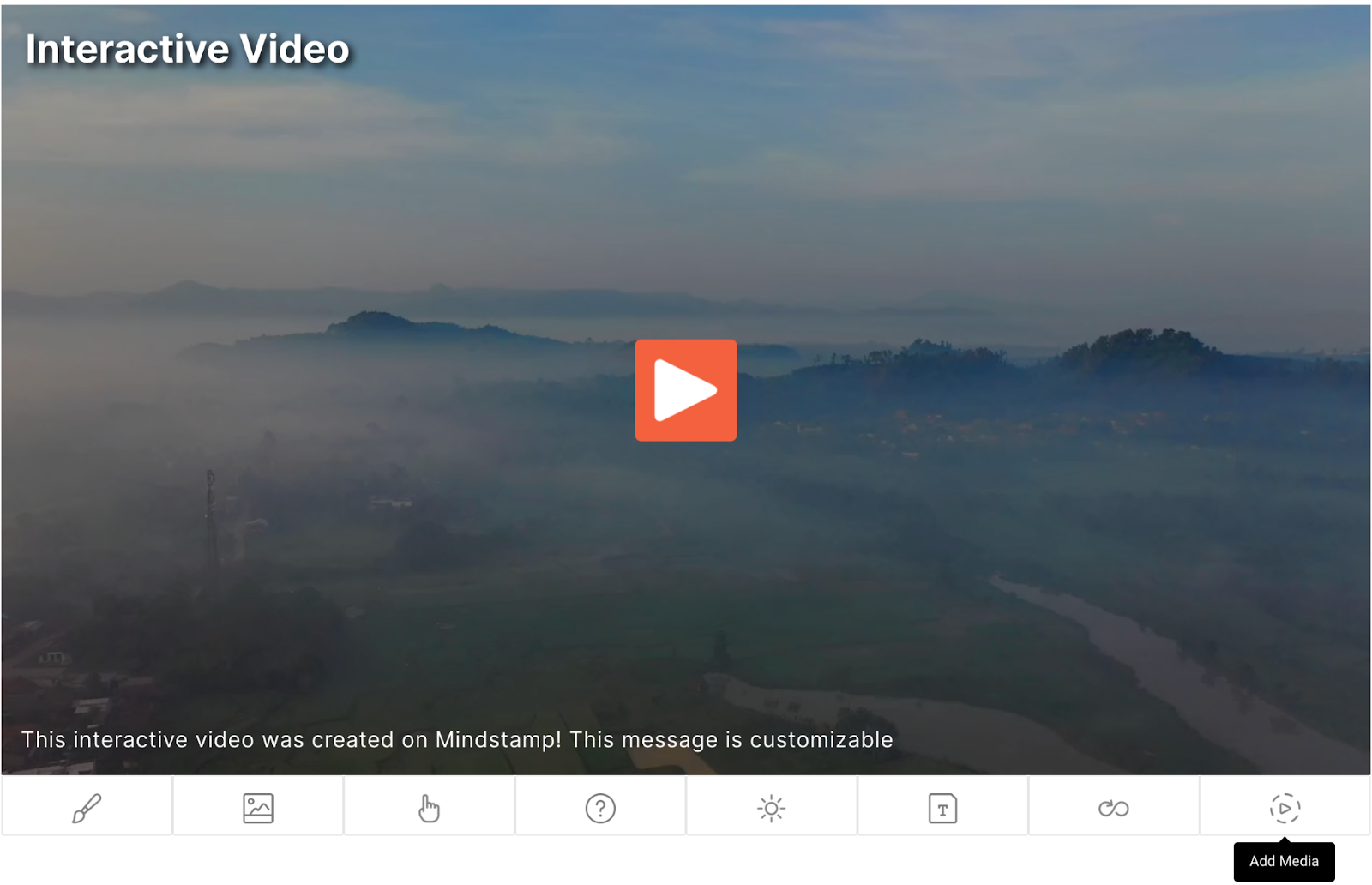
In the Mindstamp video editor, you can add voice clips to any part of your interactive videos for a unique connection with your audience. Simply choose the Add Media interaction and choose Voice Clip (You can also do Video Clips! Click here to learn more). After choosing Voice Clip, you will be prompted to choose an existing clip or create a new one. If you choose to use an existing voice clip, you will be prompted to choose the clip you want to add the video. If you choose to create a new one, you must approve your web browser’s access for your microphone. From there, you can start recording yourself to create a video clip right inside your video.
You can also use voice clips based on conditions throughout the video, through buttons your user might press, based on question responses, and many more!
Voice clips are a great way to add a personal touch to your interactive videos. You can provide information about yourself, the content, or really about anything. By giving your audience an introduction to your video, you can connect with your viewers in a way that is not possible with traditional video.
If you are using Mindstamp to create interactive educational videos, there may be a time where you wish to add additional clarification on your content. This is exceptionally useful when you are trying to maintain a flow to your video. By using Voice Clips, you can provide information that may be needed for some of your audience members but not all. This way if a certain viewer has less experience with the subject, they would benefit from your clarification. However, an experienced user might not need to listen to the voice clip, maintaining the flow of the video.
A common use case for Mindstamp is education. Voice clips can be an amazing tool for education, especially language learning. Not only can you, as the instructor, teach your students using your own voice and showing different pronunciations, you can also create voice response questions for your students. This would require them to answer questions using their microphone, providing an engaging, interactive way for your students to practice the foreign language.
What gets measured
Related
These combine on one timeline — most videos use three or four together.
Annotate the frame — circle, highlight, and point — so attention lands exactly where you need it.
Explore →Open a full image over the video when the frame is too small to carry a diagram, chart, or document.
Explore →Control colours, logo, and player styling so the interactive experience looks like your product, not a tool.
Explore →Open a Calendly or HubSpot calendar as an interaction, so the meeting is taken at the moment the buyer decides.
Explore →Ask for contact details before the video starts, at a chosen moment, or on a specific interaction — without sending anyone to a form page.
Explore →Generate a certificate when a viewer completes and passes, so evidence of training exists without anyone producing it.
Explore →Questions
You control that — duck or replace the underlying audio where the clip plays.
Yes, and every embed of that video picks up the change without re-uploading.
Try it on one video
Correct the outdated line without booking a reshoot.