
Direct attention
Mark the exact control, hazard, or detail instead of describing where to look.
Direct attention
Annotate the frame — circle, highlight, and point — so attention lands exactly where you need it.
What it does
Saying “here, in the corner” is guesswork. Drawing on it is not.
Mark the exact control, hazard, or detail instead of describing where to look.
Keep an annotation on screen while it is relevant, then let it go.
Annotations are added on top of the existing recording, not burned into a new export.
In practice
Dense screens, complex equipment, and detailed visuals.
In depth
Drawing helps you capture attention, label key parts, and add context throughout your video. You can also ask viewers to draw.
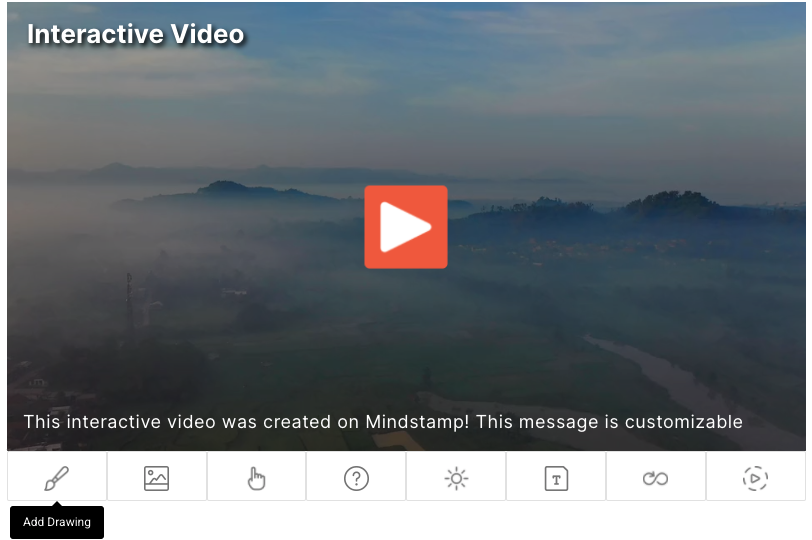
In the Mindstamp Editor, you can choose to add a drawing interaction to any point in your video to draw attention to a specific detail, emphasize content, or engage your audience to participate in their interactive experience. While adding interactions to your video, select the Add Drawing interaction on the bottom left of your video.
Once selected, you can add text, lines, pointers, circles, arrows, and even free drawings. Once you have added your drawings to the video, they will be played back for your audience at the time when you created the drawing. You can even change colors and labels to specific drawings in seconds.
With Mindstamp’s drawing feature, you can ensure that information doesn’t get missed by your views by drawing attention to a specific point in your video. By using circles and arrows, you can emphasize images, charts, definitions, and many more with ease. No longer will subtle content go unnoticed. By pausing the video for your drawing you are encouraging understanding of your video and engagement from your audience.
The drawing feature isn’t limited to just the creator of a video. By allowing your viewers to add interactions to your videos, you can encourage them to add annotations directly in your video. For example, as an instructor, you might want to encourage your students to indicate topics that they found difficult, interesting, or confusing. By using the drawing interaction, your students can circle, highlight, or point to the content they want to draw other’s attention too. This adds another level of interactivity to your videos. By engaging your audience to add to your video you are going to keep them captivated in your content longer.
What gets measured
Related
These combine on one timeline — most videos use three or four together.
Open a full image over the video when the frame is too small to carry a diagram, chart, or document.
Explore →Drop recorded audio onto the timeline to explain, correct, or localise without re-recording the video.
Explore →Control colours, logo, and player styling so the interactive experience looks like your product, not a tool.
Explore →Open a Calendly or HubSpot calendar as an interaction, so the meeting is taken at the moment the buyer decides.
Explore →Ask for contact details before the video starts, at a chosen moment, or on a specific interaction — without sending anyone to a form page.
Explore →Generate a certificate when a viewer completes and passes, so evidence of training exists without anyone producing it.
Explore →Questions
No. This is you annotating the video; drawing responses are the viewer drawing their answer.
No. Annotations sit on top of the existing file.
Try it on one video
Circle the button everyone misses and see the support questions drop.