
Keeps the video visible
A collapsed list does not cover the frame the way a wall of options would.
Ask a question
Give viewers a dropdown when there are too many options to show as buttons, and keep the frame clean.
What it does
Country, department, product line — some questions have thirty valid answers and no room for thirty buttons.
A collapsed list does not cover the frame the way a wall of options would.
A fixed option set means the data comes back clean and groups without tidying.
Native select behaviour, so the control is the one the viewer’s device already knows.
In practice
Any qualifying question where the answer is one of many known values.
In depth
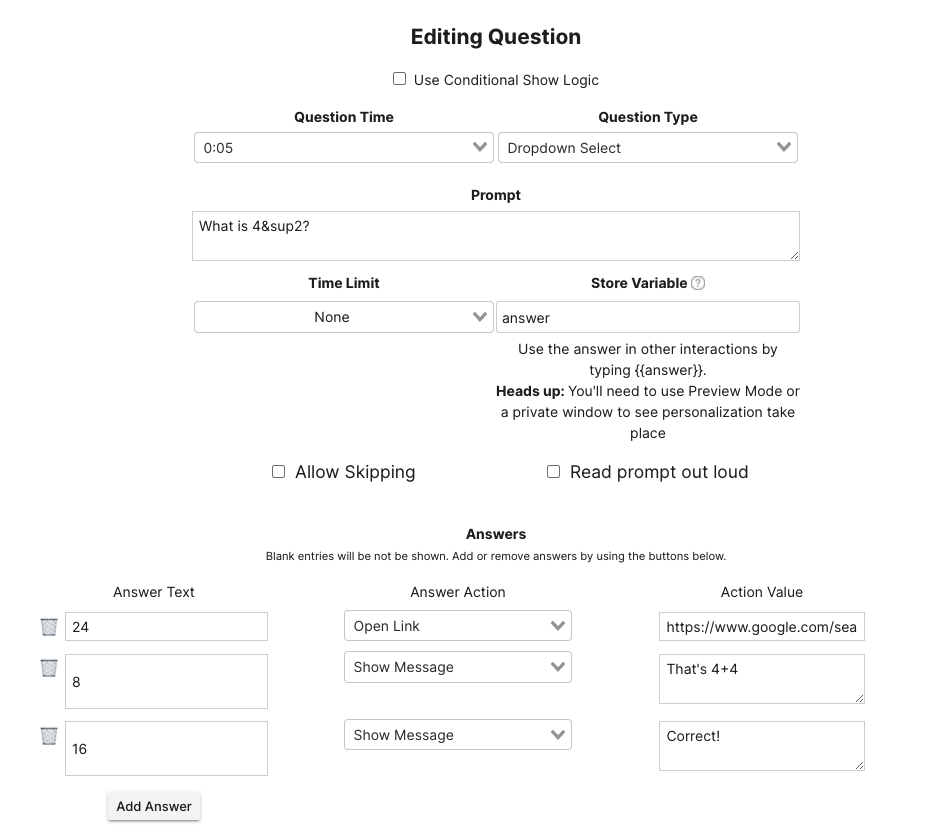
When adding a question to your interactive video, select “Dropdown Select” as the question type. From there, you can add a prompt and time limit, change settings, and track responses in a variable. Additionally, you can provide each of the responses you would like to show when the viewer reaches your questions and how each answer should behave one selected. You can even add correctness to your responses.
Mindstamp provides a number of different question types that you can use in your interactive videos. One of the reasons we offer so many different question types is to allow personalization and differentiation to each video. By using a variety of question types throughout your interactive content, you can keep your audience engaged and interested in your videos. Dropdown questions offer an elegant way to present numerous possible responses to your questions. Whereas multiple choice questions are limited to 5 responses, dropdown questions offer an unlimited number of responses that can be individually tracked and used throughout your audience's interactive experience. We also offer accessibility features that allow your question to be read aloud for your audience.
Like other question types, dropdown questions provide the ability to assign different actions to each response that was selected by your viewers. For example, if you have created a video showcasing your company’s products, you can prompt your viewers to select the product they would like to learn about next. You can add a branching interaction to each of the responses allowing your viewers to view details on the product that they have selected. You can even track each response to an individual variable.
What gets measured
Related
These combine on one timeline — most videos use three or four together.
Let viewers select every option that applies, and score the whole set rather than a single pick.
Explore →Set the correct response on any question so Mindstamp scores it automatically and reports who passed.
Explore →Collect a real date from the viewer inside the video, in a format that stays usable downstream.
Explore →Ask viewers to circle, mark, or annotate directly on the frame, and keep the drawing as their submitted answer.
Explore →Ask an open question inside the video and collect typed answers against each viewer, no form page required.
Explore →Run proper Likert items inside the video so attitude and confidence surveys sit where the material is.
Explore →Questions
Enough for real option sets like countries or product catalogues, without the frame becoming unusable.
Yes. Conditional logic reads the selected value and routes from there.
Try it on one video
Ask the qualifying question where the viewer already is.