Can I add several buttons at the same time?
Short answer
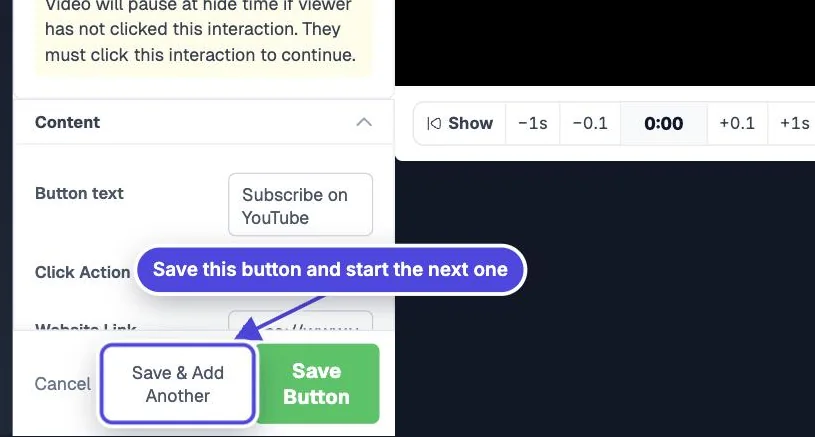
Yes. Any number of buttons can share the same time range. Add the first button, then click Save & Add Another to make a copy with the same timing and style, ready for new text and a new link or value. To change several buttons at once, use Bulk Edit.
How to do it
Copy link to How to do it- Add the first button and set its timing, style and Click Action.
- Click Save & Add Another. A copy opens a little below and to the right, with the text and value empty.
- Type the new Button text, fill in the click action value, and drag the button into place.
- Repeat for each option. To line buttons up exactly, click Match under Styling > Position and copy values from another button.
- Test every option from the share link in a private browser window.

Edit a group of buttons
Copy link to Edit a group of buttonsIn the interaction list, open a row’s menu and choose Bulk Edit. Select more interactions in the list or click them on the video, or use Toggle All. You can then change Show and Hide times, shift all times by the same amount with Shift Time, change colors, size, position, Post Click State, Require Click and Visibility, or delete them all.
Copy a finished button
Copy link to Copy a finished buttonChoose Duplicate in a row’s menu to copy a button with its text and action. Use Move Up and Move Down in the same menu to change which button sits on top when they overlap.
Build a clear choice
Copy link to Build a clear choiceTwo to four options that exclude each other make a clear menu or branch. Many unrelated buttons make the choice harder and your click reports harder to read.
Make the video wait for a choice
Copy link to Make the video wait for a choiceSet one button’s Pause to At show time with Pause Length set to Until Interaction. The video pauses when the buttons appear and continues after the viewer clicks any of them. Do not use Require Click on every option of an either-or choice, because it waits until each required button is clicked.
Count the choice once
Copy link to Count the choice onceButtons that use Change Time or Switch Video move the viewer away, so the choice happens once. For buttons that stay on screen, use Post Click State or conditional logic (Pro and higher plans) to stop a second choice.