How do I personalize a video with variables?
Short answer
A variable is a named value, such as a viewer’s name or an answer, that Mindstamp keeps while the video plays. Type it in double braces, such as {{name}}, in text, button labels, questions, or click values, and the player replaces it with the viewer’s value. Personalization variables are on Core and higher plans.
How to do it
Copy link to How to do it- Choose the value you need and where it comes from: a question, a click, lead capture, the link, or a navigation.
- Set the variable. On a question, choose a Variable in the Variables section. On a button, hotspot, image, or text, open Variables & Logic and enter a Variable and a Value.
- Type the variable in double braces where the value should appear, for example “Welcome back, {{name}}.”
- Write the sentence so that it still reads well if the value is empty.
- Test in Preview. To test a link value, add it to the share link, for example ?name=Test.
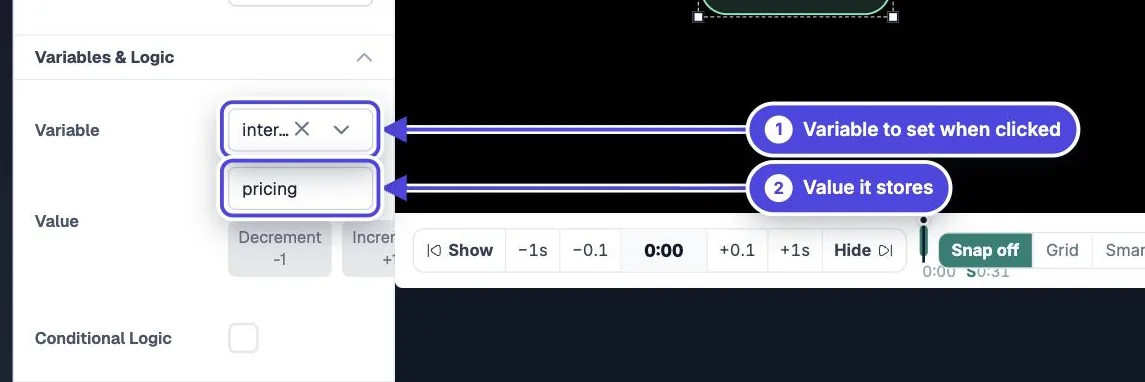

Where variables come from
Copy link to Where variables come from- A question: the answer is stored in the variable you choose.
- A click: a button, hotspot, image, or text sets a variable to a fixed value.
- Lead capture: sets name, email, phone, custom_id, and your custom fields.
- The link: any parameter on the share link or embed URL becomes a variable.
- A navigation: Set Variable, under More > Logic & AI in the add bar, sets a value at a time you choose.
Pass values in the link
Copy link to Pass values in the linkAdd parameters after a question mark and join them with &, for example https://share.mindstamp.com/w/abc123?name=Brett&custom_id=12345&fruit=banana.
The name, email, phone, and custom_id parameters also identify the viewer, so the view is reported under that person. Any other parameter, such as fruit, becomes a variable you can show with {{fruit}}.
After the player reads the parameters, it removes them from the address bar. This does not mean they failed.
Pass values into an embedded video
Copy link to Pass values into an embedded videoAdd the same parameters to the src of the embed iframe. If your page knows who the viewer is, a short script can add the values when the page loads. Put it after the embed code and replace the example values with your own data.
const viewer = { name: 'Brett', email: 'brett@example.com', custom_id: '12345' }
const values = Object.entries(viewer).filter(([, value]) => value)

document.querySelectorAll('iframe[src*="mindstamp"]').forEach((frame) => {
  const url = new URL(frame.src)
  for (const [key, value] of values) url.searchParams.set(key, value)
  frame.src = url.toString()
})
Rules for placeholders
Copy link to Rules for placeholders- Use two braces on each side: {{name}}. Spaces inside the braces are fine.
- Use only letters, numbers, and underscores in the name. {{first_name}} works; {{first-name}} does not.
- Capital letters do not matter. {{NAME}} and {{name}} show the same value.
- If a variable has no value yet, the placeholder shows nothing.
Numbers and scores
Copy link to Numbers and scoresUnder Value, Increment +1 and Decrement -1 write an expression such as {{ score + 1 }} that adds to or subtracts from a number each time it runs. The player also sets cScore, the percent of scored questions answered correctly, and pScore, the percent of scored questions answered.
Use variables beyond text
Copy link to Use variables beyond text- Show or hide interactions with conditional logic (Pro and higher).
- Put a variable in a link, such as https://example.com/offer?role={{role}}.
- Turn on Append variables when opening links in the video’s Settings to add every variable to links that the video opens.
- Send one personalized link to each person from Share > Personalize for a recipient…. See How do I personalize video links from my CRM or website?.
Keep personal data out of links
Copy link to Keep personal data out of linksAnyone who sees a link can read its parameters. Do not put private data in a link. A personalized link keeps the values in Mindstamp and shows only a link ID.