How do I use video branching?
Short answer
Branching sends each viewer to different content based on what they choose. In Mindstamp you branch with two click actions: Switch Video moves the viewer to another Mindstamp video, and Change Time moves the viewer to another point in the same video. Video branching is included on every plan.
How to do it
Copy link to How to do it- Decide whether each branch is a separate video or a section of one long video.
- Publish every video that a viewer can reach. A branch to an unpublished video does not run.
- In the video that holds the choice, add one button, hotspot, image, or text interaction for each option. You can also use a multiple-choice question and set an Action on each answer.
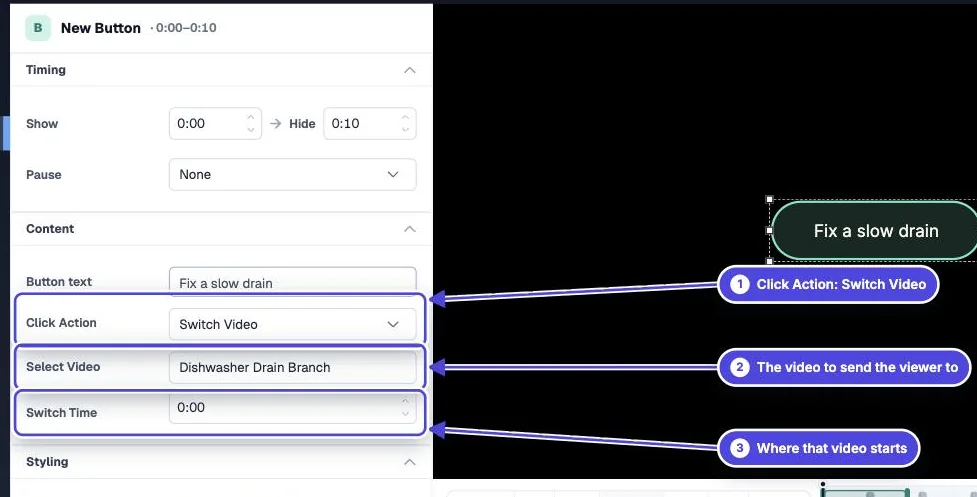
- Open the interaction, go to Content, and set Click Action to Switch Video (then Select Video) or Change Time (then Select Time).
- To branch without a click, click More in the add bar, then choose Switch Video or Change Time under Playback & Navigation. This adds a navigation that runs at its time.
- Open More in the video menu and choose See branching to check the map of video-to-video paths.
- Click Preview and follow every path to its end.
Switch Video or Change Time
Copy link to Switch Video or Change TimeUse Switch Video when your branches are separate files. Each video has its own report, so you can see who reached each branch. Each branch video also counts toward the videos in your library.
Use Change Time when all branches are sections of one file. The viewer stays in one video, so the branches do not use extra library videos, and the whole path is recorded in one view.
Start the destination at a chosen time
Copy link to Start the destination at a chosen timeAfter you select a destination for Switch Video, set Switch Time to start the destination video at a point other than 0:00. Use this to skip an intro that the viewer already saw.
Send viewers back
Copy link to Send viewers backThe Switch to Previous Video action returns the viewer to the video they came from, at the time they left it. Use it for a short detour, such as a product demo, that should return to the main story.
The End Screen tab also has Switch Video (Automatic) and Show Button: Switch Video, so the end of one video can lead to the next.
Keep what the viewer told you
Copy link to Keep what the viewer told youVariables that a viewer sets in one video go with them when they switch. The next video can greet them by name or show only the options that fit their earlier answers. See Do variables carry over when a viewer switches videos?.
Test before you share
Copy link to Test before you share- Mindstamp lists unpublished destinations under Unpublished Video Branches. Publish them, or the switch does not take place.
- In the editor, an automatic switch shows Automatic Branching Choice, so you can stay on the video you are editing. Use Preview to test the real viewer path.
- Test each path on a phone as well as a computer.