How can I collect the exact viewer location?
Short answer
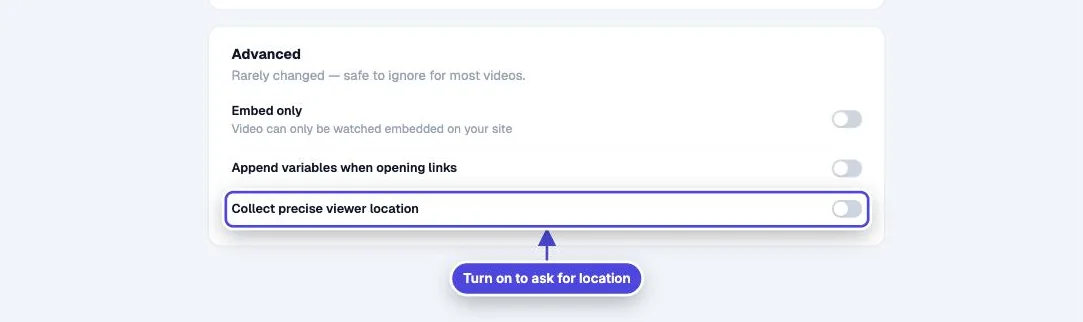
Open the video Settings, go to Advanced and turn on Collect precise viewer location. When the video loads, the browser asks the viewer to share their location. If they allow it, the view records their coordinates and an address. This setting is on Core and higher plans.
How to do it
Copy link to How to do it- Open the video and select Settings.
- Go to the Advanced section.
- Turn on Collect precise viewer location.
- Open the share link in a new browser window and allow the location prompt.
- Finish or close the session, then open the view in Reporting > Views and check the location.
What the viewer sees
Copy link to What the viewer seesThe browser shows its own permission prompt when the video loads. The viewer can allow or block it. If they block it, or do not answer within a few seconds, the video plays as normal and the view uses the approximate location from the network address.
What is stored
Copy link to What is storedWith permission, the view stores latitude and longitude, and Mindstamp looks up the matching address: street, postal code, city, region, county, country and a map link. The field `has_exact_location` is true. Without permission, the view stores only the approximate city, region and country.
The precise fields appear in a views export when you select Include Interactions, Variables, and Location, and in the API and view webhooks.
Embeds
Copy link to EmbedsThe embed code from Mindstamp allows the location prompt inside the frame. If you edited the embed code, keep `geolocation` in the iframe `allow` attribute. A site that blocks location for embedded frames also blocks the prompt.
Privacy
Copy link to PrivacyAn exact location is personal data. Tell viewers why you ask for it, collect it only when you need it, and follow your own privacy policy.